Scrambler Therapy Data Manager (STDM)
Important information
This software is very powerful, but has been designed to be extremely user friendly. Thus many software functions are completely automated .
Privacy and data security
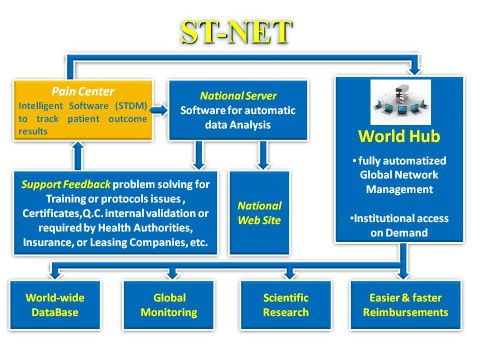
Data security is locally guaranteed by archive encryption and the possibility to use a password to access all program functions. Data sent to the ST-NET HUB, apart from being encrypted, eliminates all the patient's personal information, including address, email, and telephone numbers. When the patient's file is opened a unique code is generated to replace his real identity.
Data sent over ST-NET network pertain exclusively to folders managed by STDM. No other data type belonging to the system where the software is installed (including information rendered available by the operating system) is analyzed or sent over the network.
Health Insurance Portability And Accountability Act (HIPPA) Compliance ST-NET is fully compliant to HIPAA privacy standards. Implemented multi-level protection requirements are higher than those in most popular commercial software.
Data sharing in a private network
If also the STDM-Sync module has been downloaded it is quite easy to create a private network and share the database among the computers that access the same ftp folder specifically set-up. The folder can be created either on a public or private network.
STDM work interface
STDM work interface is based on a control panel that includes and allows to easily use the necessary tasks to manage medical records, the network and other useful functions. On the top area there is a tool bar, that allows access by clicking on mostly used commands. Immediately under, there is a box for patient search by entering last name or part of it and a calendar to fix appointments. The two boxes labeled as “Active
List” and “Completed List” immediately display medical records of patients undergoing treated (highlighted in yellow) and patients who have ended a treatment-cycle (highlighted in blue). When clicking the patient name immediately the Preview box displays a report that highlights the main treatment data. A double-click on the file allows to open it without having to use the specific command (visible names are made-up).
Preview displays information and important suggestions provided by the software when a medical record is created, it can be printed by clicking on the print icon from the menu bar. Active list automatically becomes a Completed list according to data entered in the medical record. The rest of the area enables to monitor the network connection, and whether the local or shared database is being used when a private network has been activated. Important to point out that computer resources used are very few. The network is connected only when necessary, and closed at the end of operations that usually lasts just a couple of seconds. Files are very light, and typically weigh less than 0,003 MB. This allows quick transmission and limited space in hard disc drive memory.
Medical Record
To create a medical record click on “New Medical Record”. The item is available on the menu bar or “File” menu. Patient file is divided into 5 Work Areas that can be selected by clicking on the select record button under the menu bar. The first operation is to enter patient Check-in data. If this operation is not carried out it is impossible to proceed. It is strongly advised to fill in all requested items, even if some are not mandatory to continue the input. Entered data are analyzed by a specific algorithm that is not able to tell the difference between an empty or unchecked checkbox when a patient's medical record does not apply. Another important reason to fill in all the requested items is the use of “Precautions and advice”. This box clearly displays a series of related data that will remind you of possible criticality. Data that demand caution are highlighted by a yellow flashing of “Precautions and advice”, in risky data a red flashing is displayed. For research purposes or to create a more comprehensive medical record it is possible to use the "Brief Pain Inventory”, Pain Detect, DN4 list by clicking on the specific button.
If patient information needs to be hidden also on the local medical record suffice to press the “Obscure” button after having entered the patient's last name.
Data confidentiality in research
If data of clinical trials underway are not sent to the international database for a specific timeframe (max. 5 years), suffice to check the “Enrolled in clinical trial” yellow box. Having checked the box will allow you to choose from the month list (0 to 60 ). This data will remain confidential and separate from the common database. By so doing the algorithm that manages the Hub will automatically free all data for the selected time-frame.
Entering daily data
By selecting “Treatment data” it possible to key in data on daily treatments. The progressive number is automatically updated, but it is also possible to see previous data using navigation buttons. To speed data input and avoid errors, pain intensity assessed on a numeric scale from 0 to 10 (NRS) can be done with related slider. NR indicates no reference. Mandatory data are on the left side of the screen. Optional data are on the right side of the screen. The description of each optional area can be customized by writing a personalized description in the related field. For example instead of “Pain Area 1” it is possible to write an other more meaningful description. Each time the description is changed, it is re-proposed by default in the following insertions, but can be easily modified. If one tries to change file or exit when mandatory data are incomplete a self-explanatory message will appear with various options. A completed daily insertion blocks the sliders to avoid involuntary variations. If necessary it is possible to click on the “Slide unlock” button and make the necessary changes. Quick export buttons display overall file data in the requested form. The associated program is directly opened inside the
STDM.
Export is immediate, but remember that the program that will be opened is connected to the operating system that selects the software to use according to the extension connection file automatically created for export. No export files are created when the original Excel is set. In this case the Excel sheet is directly created from the program and opened in Excel without the connection file. When the Word icon is selected a .rtf export file is created, normally associated to Word. It is possible to switch from Windows this association, therefore open the program that Windows sees as an associated .rtf extension. When the Notepad is selected a .txt export file is created normally associated to Notepad. When the Excel icon is selected an Excel sheet is created, but to visualize it the computer needs to have the original Excel installed. If it is not installed or if the version is not compatible, the software detects the error and automatically transfers the set up on compatible Excel, generating a .csv file. Files with this extension can read any type of Excel compatible software. Create a
graph button enables to immediately create a graph showing the treatment trend from the first treatment to the last one carried out. The graph can separately display both mandatory and optional data divided into different areas.
By clicking on “Automatic analysis” an algorithm analyzes the treatment data and highlights the main control parameters, indicating the percentage shift from the normal values.Meaningful shifts or serious anomalies are highlighted in red.
Check-out Data
When these data are keyed in the file automatically goes from an active to a completed status. The file will then be visible only on the completed list. In this case it is also possible to fill in the Brief Pain Inventory, Pain Detect, DN4 by clicking on the button.
Follow Up
The follow up icon includes 3 follow up files that can be filled in at chosen time-frames, usually 1, 2 and 3 months at end treatment-cycle. Pain Relief values are calculated automatically. It is also possible to fill in a Brief Pain Inventory, Pain Detect, DN4 for each follow up by clicking on the button.
Visual data
For each day of treatment it is possible to record the position of electrode-pair, numbers from 1 to 5. To position an electrode on the dermatome map simply click once on the electrode to position, without keeping the mouse pressed. When the electrode to position turns green, place it on the chosen area and click again to fix it. Repeat the procedure for each electrode that has to be positioned. The navigation buttons have the same function as the pain intensity numeric data form.
Other useful commands
Exporting the database
This function is very useful for clinical researchers. From the “File” Menu click on “Database Export” to start the export activity. It is possible to select filters to export only files with specific features. The analysis is carried out among all the completed medical records in the archive. The generated file can be either in .csv or .txt, both general standards usually compatible with any off-the-shelf software.
Archive management
The specific file structure and sync. requirement is easily managed by the Backup/Historical Data /Import functions. File names vary and for this reason not using internal software functions for archive maintenance can generate errors and data loss. By using these functions one avoids file duplication and always storage of most updated versions in the archive.
Backup
Backup command exports the entire archive to the desired position (another folder, on a hard disc, UBS flash drive etc.). Backup is progressively numbered.
Historical Data
Historical data command transfers into a separate archive the folders that exceed the chronological limit set on the appropriate window.
Import archive from...
Enables to recover folder content from Backup or Historical Archive. During import activity there is also a check to verify whether a more recent file is not already on the local archive. If this were the case the less recent file will not be imported. If a file is not present or a more recent from the one in the local archive it is copied into the local archive.
Print documents
This software is designed for a complete digital document management, but in some cases a printed version might be necessary. “Report” on the menu bar allows to print a preview of the essential data from the patient's medical record. Complete information included in each patient medical record are many. In order to print them the record must be exported with commands on the File menu or in the patient medical record choosing most fit format. It will then be possible to select only information necessary, format them and print them with software commands that opened the record from inside.
|